KeyClu with VoiceOver on macOS wasn’t something I actively went hunting for. It emerged from a small frustration that kept repeating itself. I would be inside an app, hear a menu item via VoiceOver, and know there must be a quicker way to trigger it. I just couldn’t remember the shortcut.
So I’d navigate the menu instead. It worked, and VoiceOver makes that efficient enough. But efficient isn’t the same as optimal. Over time, those small inefficiencies compound.
That was the real issue. I rely heavily on the keyboard, but I’m not truly keyboard-first. There’s still a gap between what macOS can do and what I consistently use.
Why KeyClu with VoiceOver on macOS Matters
macOS has excellent keyboard support. The capability has always been there. The challenge is discoverability.
Shortcuts are hidden in plain sight. Unless you’ve memorised them or deliberately studied documentation, they remain buried in menus. You might notice them occasionally, but you rarely internalise them.
As a VoiceOver user, I can move through menus quickly. That isn’t the bottleneck. The bottleneck is visibility and reinforcement.
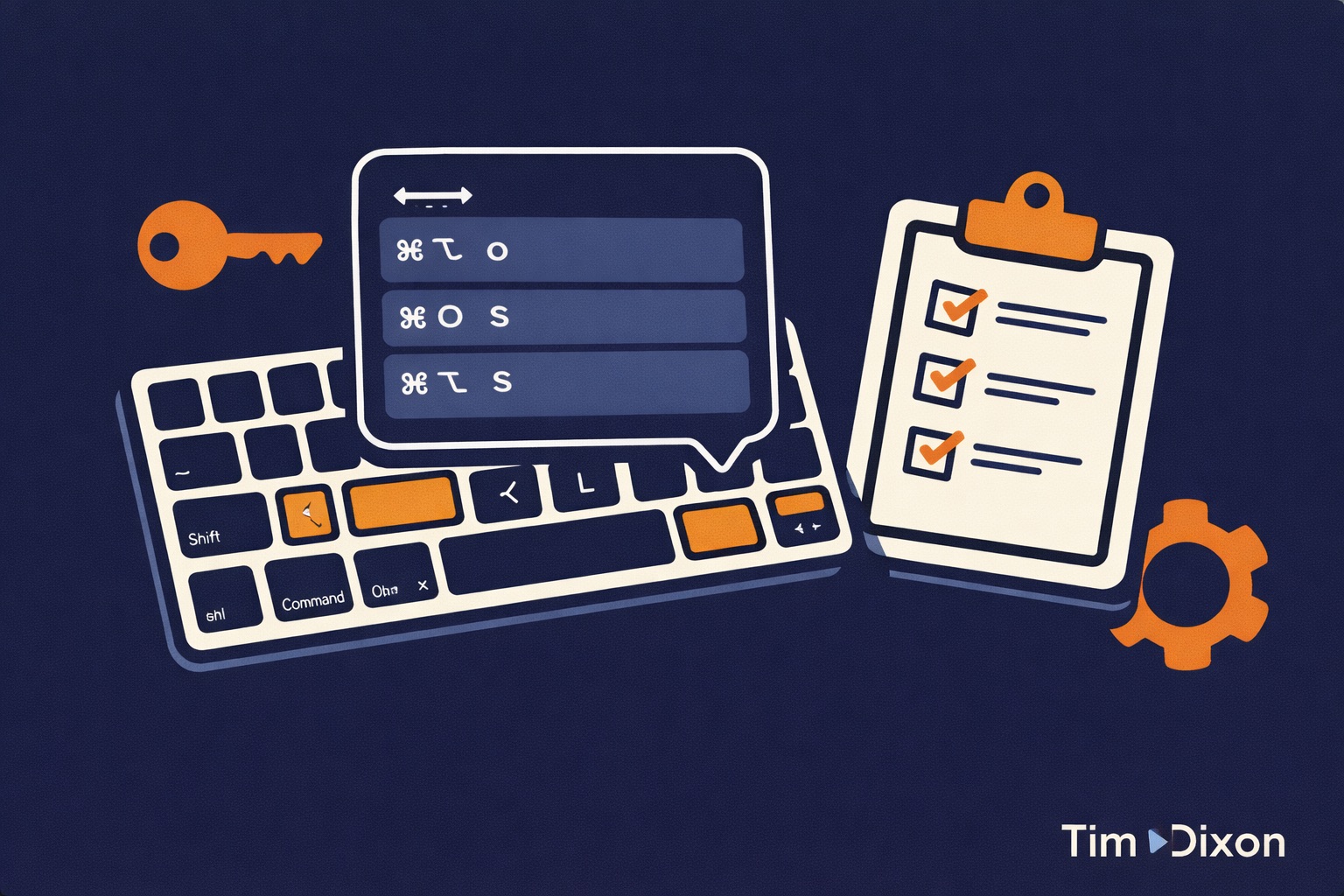
KeyClu surfaces every available shortcut for the active application in one place. Instead of wondering whether a shortcut exists, I can confirm it instantly. That simple change alters behaviour more than I expected.
Installing KeyClu on macOS Using Homebrew
If you manage tools via Homebrew, installing KeyClu takes seconds. There’s no need to browse websites or drag applications manually into the Applications folder.
Open Terminal and run:
brew install keycluOnce installed, you can launch it via Spotlight or from Applications. It integrates quietly into the background, which is exactly how I prefer utility tools to behave.
Configuring KeyClu with VoiceOver on macOS (Persistent Panel)
The default activation method for KeyClu uses a press-and-hold trigger. For VoiceOver users, that approach introduces friction. Modifier keys are already heavily used, and timing-based triggers can clash with normal navigation patterns.
I switched to using the Persistent Panel instead. This allows the shortcut panel to appear and remain visible until I deliberately dismiss it. That predictability makes all the difference.
To configure this, open KeyClu and navigate to Settings. Select General in the sidebar. Under Activation, choose your modifier key — I use Shift because it avoids conflicts with VoiceOver commands. Then scroll down to the Persistent Panel section.
Set both activation and dismiss to “pressing activation key 3 times”. With that configuration, pressing Shift three times displays the panel. Pressing Shift three times again dismisses it.
There’s no holding required and no accidental disappearance. It behaves consistently, which is critical when accessibility tools are involved.
Enabling macOS Keyboard Shortcuts Integration
There is one integration setting that significantly improves the experience. Inside KeyClu, go to Settings and then Integrations. Enable the option labelled “macOS Keyboard Shortcuts”.
This allows KeyClu to pull in any custom shortcuts you create at the system level. When you add a shortcut in macOS System Settings, it appears inside the KeyClu overlay as well. That keeps everything aligned.
Without this integration enabled, your custom shortcuts won’t show up in the panel. That weakens the feedback loop. With it enabled, macOS becomes the source of truth and KeyClu becomes the visibility layer.
How I Use KeyClu with VoiceOver on macOS in Practice
In day-to-day use, my workflow is straightforward. I’m inside an application and I question whether a shortcut exists for a particular action. Instead of diving into menus, I press Shift three times.
The panel appears and I use standard VoiceOver navigation to explore the available shortcuts. VO and the Arrow keys allow me to move through the list and understand what’s possible. That exploration takes seconds.
The important part is repetition. Seeing shortcuts repeatedly makes them familiar. Familiarity leads to usage, and usage builds habit.
This isn’t about memorising lists. It’s about making shortcuts visible often enough that they naturally become part of how you work.
Adding Missing Shortcuts in macOS
Eventually, you’ll encounter commands without assigned shortcuts. When that happens, it’s an opportunity rather than a limitation.
Open System Settings and navigate to Keyboard. Select Keyboard Shortcuts and then App Shortcuts. From there, choose to add a new shortcut.
Select if this is for a specific app or all apps. You must enter the Menu Title exactly as it appears in the menu bar. Capitalisation, spacing and punctuation all matter. Even ellipses must match precisely. I open the app, navigate to the relevant menu with VoiceOver, listen carefully to the exact wording, and type it precisely. Once entered correctly, I assign a logical key combination and save it.
Because macOS Keyboard Shortcuts integration is enabled in KeyClu, the new shortcut immediately appears in the overlay. That confirmation reinforces the system and keeps everything visible.
What Has Actually Changed for Me
KeyClu hasn’t delivered an overnight transformation. It hasn’t introduced new functionality to macOS. What it has done is remove the barrier of uncertainty.
Instead of vaguely intending to “learn more shortcuts,” I now have a practical mechanism for discovering and reinforcing them. The act of checking has become habitual.
Over time, menu navigation reduces naturally. Not because I forced myself to change, but because the faster path became visible and easy to adopt.
I’m still not fully keyboard-first. But I now have a structured way of moving in that direction consistently.
Verdict: Is KeyClu with VoiceOver on macOS Worth It?
For me, the answer is yes. KeyClu doesn’t promise dramatic productivity gains or radical reinvention of macOS. What it provides is clarity.
For a VoiceOver user aiming to become more keyboard-first, that clarity reduces friction and encourages better habits. It makes existing power visible rather than hidden.
It’s not flashy and it’s not complex. It’s simply a practical tool that nudges behaviour in the right direction.
Tell me what you think in the comments below or on X @timdixon82


I installed this. I think I have it configured so the activation key is shift and it needs to be triple pressed. However, when I switch to another app and triple press shift, nothing happens.
Could this have something to do with the set of 5 unlabelled radio boxes in the general settings?
Any suggestions welcome. I have done my best to sift through the settings, but cannot figure this out.